Web Phone Troubleshooting
Table of Contents
Troubleshooting Web Phone Getting Started 1. Web Phone Is Not Registered/Cannot Dial Out Check the site permissions. 2. One-Way Audio Additional Windows Settings - If the other person cannot hear you 3. Call Quality 4. Desktop Notifications Browser Settings Windows Settings Web Phone isn't Ringing when a Call is Received Ring All User Phones Setup Example Ring Web Phone Only Setup Example
Troubleshooting Web Phone
Here are the steps to troubleshoot common issues with the Web Phone: Review and click the issue you are facing below. If the issue is not listed, don't hesitate to contact support.
Getting Started
If you haven't finished setting up your Web Phone, we have a helpful guide to get you started. You can review it here: How to use your Web Phone.
- Web Phone Is Not Registered/Cannot Dial Out
- One Way Audio
- Call Quality
- No Desktop Notifications
1. Web Phone Is Not Registered/Cannot Dial Out
- We recommend using a USB or Bluetooth headset with the Web Phone
- If you are using an analog headset, make sure the headset has cables for both ports in the image below
- Make sure the image/color of the headset cable matches the ports it is plugged into

If the Web Phone looks like the image below, completing the steps below is recommended for troubleshooting.
In order to register, the Web Phone requires permission to use a working microphone. Review the steps below to determine if the Web Phone cannot access a working mic.
Check the site permissions.

Expand the Web Phone to Fullscreen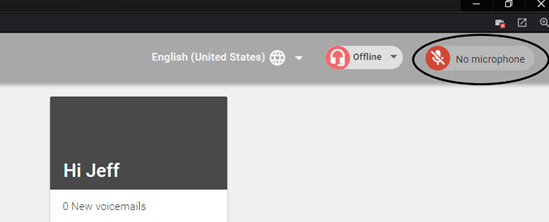
From the above image, we can see 2 things.
- The Web Phone has permission to use the microphone
- There is no microphone detected
Some Windows drivers want to know what device is being plugged into it. If that's the case, make sure to select the device you plugged in to set it to headset.
Windows Settings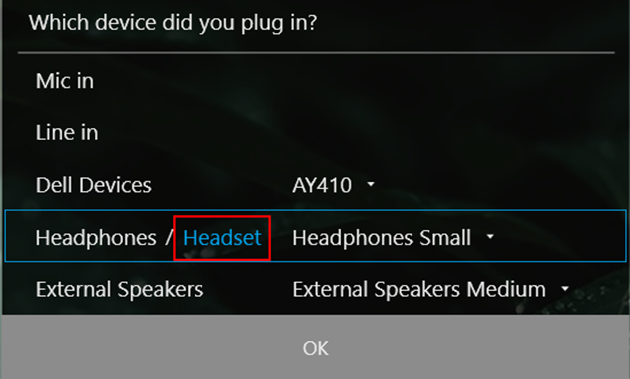
Open the Microsoft Windows control panel
- Search for audio devices
- Select "Manage Audio Devices"
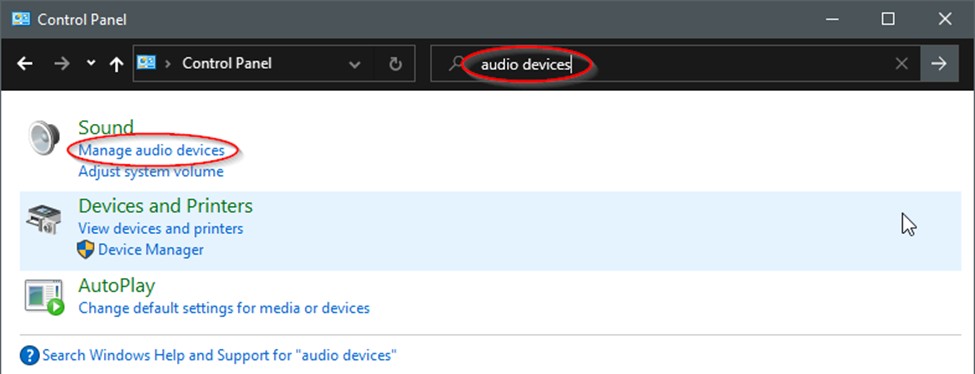
- Ensure the headset is listed under playback and recording with a green checkmark.
- If the device doesn't have a green checkmark and is marked as disabled, right-click it and make it the default device and communication device.

- After these changes are made, close the Web Phone and open it back up
- Press "Allow" if the site asks for access to your microphone
- The Web Phone should now be registered
- Try rebooting the PC if the above steps fail.
2. One-Way Audio
If audio only goes one way, there are several things to troubleshoot.
- Try making a call with a different person and see if the issue persists
- Check the volume on your headset and your computer
- Ensure the cables are plugged in nice and tight
- Make sure the headset is turned on and not muted ─ If you are using a wireless headset, make sure it is fully charged.
- Ensure your preferred audio device is set correctly in the Web Phone settings pane (see the image below)

- Listen to something on your computer, whether it's a video or some music; if you can hear the audio, check the volume mixer to see the volume in the browser.
- Reboot your PC
- Reboot your Internet router/modem
- Some headsets have a "push to talk" button
- Check the volume mixer that the browser volume is turned up (see the image below)

Additional Windows Settings - If the other person cannot hear you
- Open the Microsoft Windows control panel
- Search for audio devices
- Select "Manage Audio Devices"
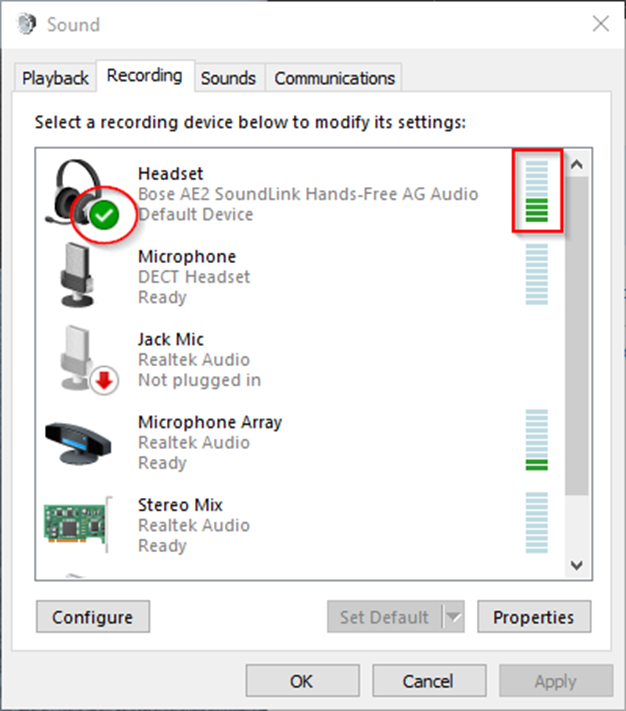
- Select the recording tab
- Make sure your headset is set to the default device with a check mark
- You can right-click the device to change it to the default
- Talk into your microphone; you should see it picking up audio. There is a green bar that indicates this
- If no audio is being picked up, try a different headset. Test if the headset is the issue
3. Call Quality
The underlying cause of call quality usually relates to the internet connection or the microphone settings and quality. Below are some steps to improve call quality.
- Reboot the modem/router
- Reboot your PC
- Avoid using Wi-Fi by plugging the computer directly into the network with an Ethernet cable
- Use a wired headset over wireless, test making a call using PC speakers to rule out the headset
4. Desktop Notifications
On Windows 10, you can receive desktop notifications while the Web Phone is minimized. If this is not working, review the steps below.
Browser Settings
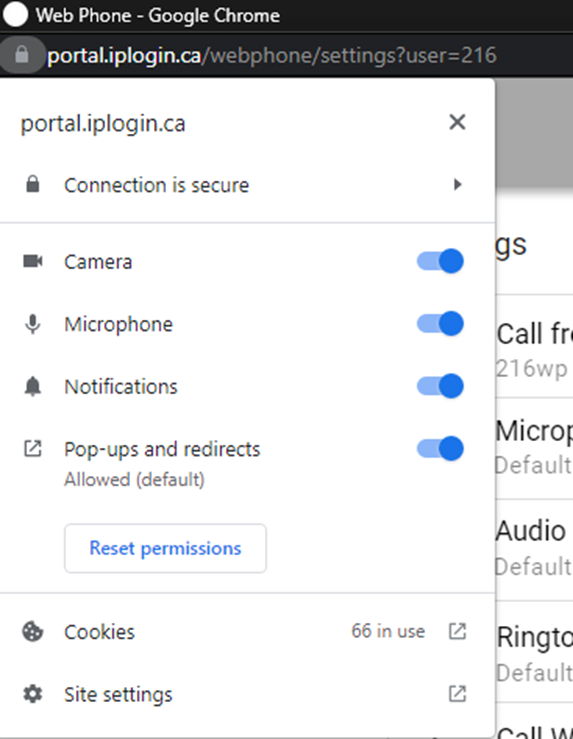
Select the lock icon by the URL and ensure Notification is set to Allow
Windows Settings
In your Windows 10's settings, make sure notifications is turned on for the web browser that you use
Notifications
You should now be receiving desktop notifications similar to the one below. You may click on the notification to jump to the Web Phone.
Web Phone isn't Ringing when a Call is Received
Several conditions could cause this; the most common are:
- Is the computer's speaker volume turned up?
- Does the computer have a working speaker\microphone or headset attached?
-
Does the computer use Chrome as the browser, and is the version at least Version 67.0.3396.99? This can be checked under the User\Phone tab, as the version number will appear in parentheses after the Web Phone description (Chrome 67.x.xxxx.xx). Compatibility with other browsers is being added, but hasn't been thoroughly tested.

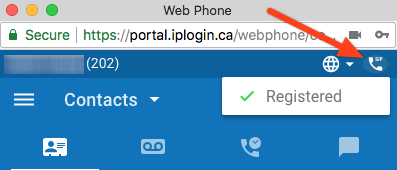
Is the web Phone browser open on the User's computer? A registered Web Phone will appear when clicking on the top right Phone icon. The phone will not ring or appear registered if the window is closed.
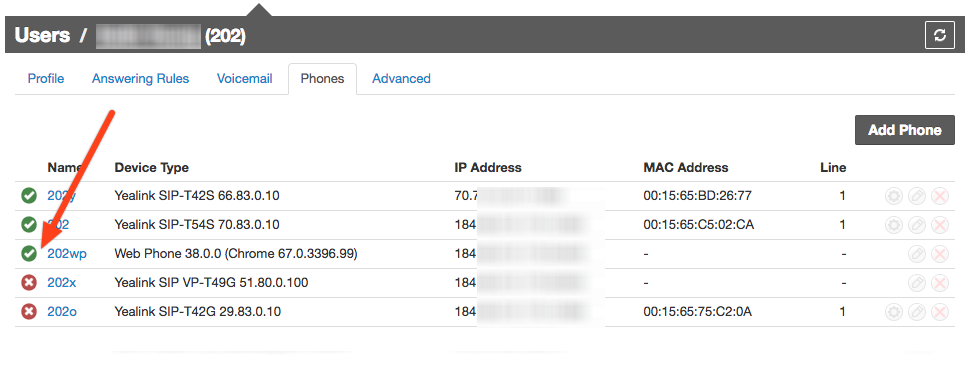
If diagnosing remotely, please ensure the Web Phone is registered under the User\Phones tab. Web Phones have an automatic extension with a "wp" suffix, such as 101wp. A green checkbox would indicate that a Web Phone Browser is properly registered and open. A red stop symbol indicates it is not open or registered.
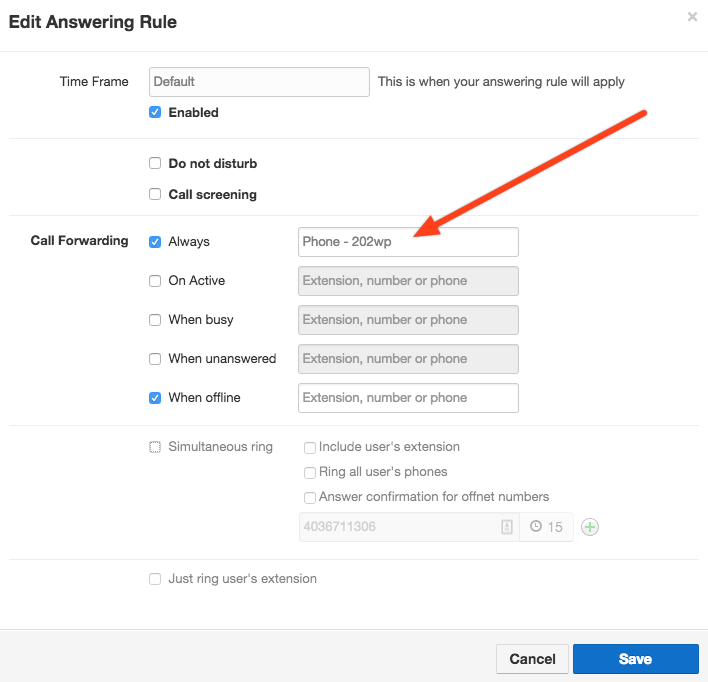
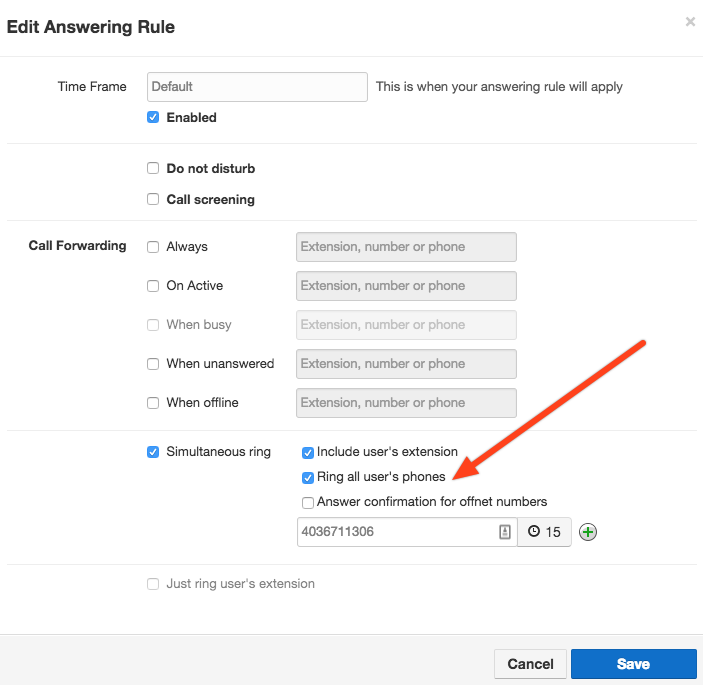
Is the web phone set to ring according to the answering rules? Typically, if the user has set the answering rule to ring all users' phones, it will be automatically added to inbound ringing when the Web Phone is open and registered (first screenshot below). If the Answering Rule is not set to "ring all users' phones," ensure the extension ending in "wp" (like 101wp) is set to be a ringing device on its own (see the second screenshot below).
Ring All User Phones Setup Example
Ring Web Phone Only Setup Example