Managing Agents - Call Queues
Table of Contents
Prerequisites Managing Agents Choose a Ring Strategy Managing Agent Priority Pre Queue Options Tab How Max Queue Length Affects Agent Availability In Queue Options Tab Queue Ring Timeout Info Logout Agent on Missed Call Softphone Ring Delay in a Queue SMS Tab Do Not Disturb (DND) and Answering Rules in a Queue Call Center Supervisor Music on HoldPrerequisites
Call Center Supervisor permission in the portal.
Explains how to manage agents inside of a call queue, how to navigate being a Call Center Supervisor, and configuring music on hold.
The Call Queue page lists all of the available call queues in the logged-in user's domain.

Managing Agents
Agent settings can be configured directly in the Call Queue table by clicking the agent icon next to a call queue or the Agents (available) column.


A new agent is automatically labelled as an "offnet agent" if their phone number is not found in the system.

Agents can have custom statuses. Read more here, Agent Status.
Choose a Ring Strategy
Under the basic tab, select one of the following distribution methods:
- Round Robin: Routes calls to the available agent that has been idle the longest.
- Tiered Round-robin: Routes calls to agents with escalating tiers.
- Ring All: Routes calls to all agents simultaneously.
- Linear Hunt: Routes callers to the available agents in a predefined order. The order is defined when editing the queue's agents.
- Linear Cascade: Routes callers to groups of agents in a predefined order. The order is defined when editing the queue's agents.
- Call Park: Place the caller on hold until an agent retrieves them.
Choose the strategy that best fits your team's workflow and click "Save".
For more information, refer to "Working with Call Queues".
Managing Agent Priority
When an agent is assigned to multiple queues, it is important to determine the agent's priority in each queue. Where is the agent most needed? That is where they should be configured with a priority of "1". Assigning this same level of priority to the agent in another one of their queues is conflicting behaviour. Carefully consider an agent's skills and the queue in which they are most needed, then begin configuring priorities.
- In the Manager Portal, navigate to the Contact Center page.
- In the bottom-right corner, across from the agent that needs to be configured, click the .... button. This will pop out the agent with a list of their assigned queues.

- Now select the agent's priority for each assigned queue. If an agent is in multiple queues, it is best practice to assign them different priorities when a call is dispatched to both queues simultaneously.
- Click Save to finish configuring priority.

Pre Queue Options Tab
This screen has the same choices regardless of the selected call queue type (except for Call Park, which has no additional tabs beyond Basic).

How Max Queue Length Affects Agent Availability
Max Queue Length controls how many callers can wait in the queue at one time -- it is not related to the number of agents.
When the queue reaches its Max Queue Length, new callers are considered overflow and are redirected using the Forward if Unavailable destination. This is what triggers the system message callers hear about high call volume.
Common scenario: A queue has 8 agents and a Max Queue Length of 10. If 10 callers are already waiting, the 11th caller is routed to the forward destination—even if agents are available. The solution is to increase the Max Queue Length or review the Forward if Unavailable routing.
Tip: Max Queue Length should reflect realistic call volume, not the number of agents. A common starting point is 2 to 3 times the number of agents.
In Queue Options Tab
This tab configures what happens to callers while they are in the queue waiting to be directed to an agent.
These are the in-queue options available for the following call queue types: Round-robin, Tiered Round-robin, and Linear Hunt.

These are the "In Queue" options for the Ring All call queue type only.

These are the "In Queue" options for the Linear Cascade call queue type only.
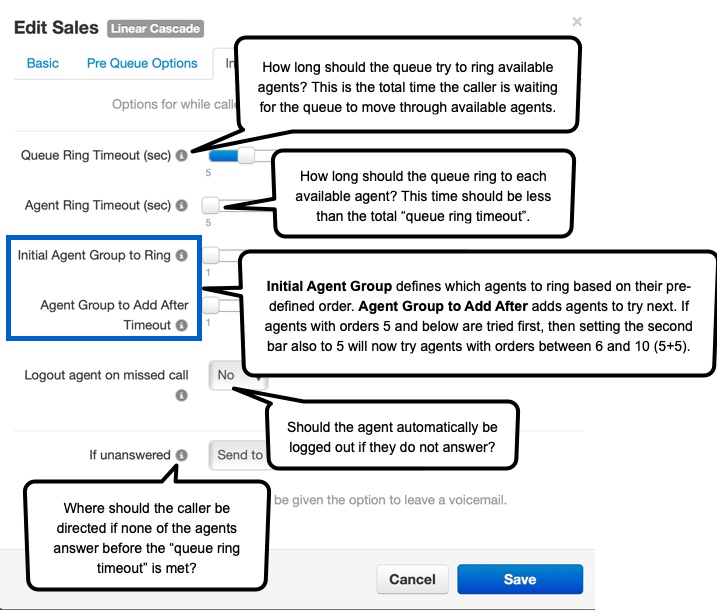
Queue Ring Timeout Info
Queue Ring Timeout, when set to Unlimited in any queue type, will mirror the MaxTalkDuration value, which defaults to 7200s.
Callers will be sent to the queue's voicemail if agents fail to answer before the Ring Timeout, and if Forward if unanswered is not set. This will also trigger the system message: "Please continue to hold or Press 2 to leave a voicemail," and then return the call to the queue if nothing is pressed. The voicemail box for the "Press 2" option is the call queue owner's voicemail box.
Logout Agent on Missed Call
Note that "logout agent on missed call" will not work as expected if the call queue is managed by "User" rather than "Device".
If, for example, a user has a simultaneous ring setup, the call queue won't know if the agent actually missed the call and therefore won't log them out.
If the queue is set to the user's device, it can determine whether the call was missed on that device and work as expected.
Softphone Ring Delay in a Queue
If a UC Advanced Softphone user notices a delay of 5 to 10 seconds before their app rings for queue calls, this is typically caused by one of the following:
- Simultaneous Ring is configured on the extension. When a queue call arrives, the system attempts to ring the registered device first, then the simultaneous ring target, which adds latency. Review the user's Answering Rules and remove or adjust simultaneous ring if not needed.
- The queue is set to be managed by the user rather than the device. When set to User, the system must resolve all registered devices before ringing, which can introduce a delay. Setting the queue to be managed by a specific device reduces this.
- Push notification wake-up on mobile. On mobile, the UC Advanced Softphone relies on a push notification to wake the app before the call can ring through. This is normal behaviour on mobile and cannot be eliminated, but switching the user's primary queue device to a desk phone or desktop softphone resolves it for queue purposes.
SMS Tab
This screen has the same choices regardless of the selected call queue type (except for Call Park, which has no additional tabs beyond Basic).
Enabling SMS opens the following configuration options:

Do Not Disturb (DND) and Answering Rules in a Queue
Call queue settings take priority over individual user settings, including Do Not Disturb (DND).
- DND set on a device will not prevent the queue from ringing that extension. The queue dispatches calls based on agent login status, not device DND state.
- DND set in the portal answering rules also does not override queue behaviour. Queue calls bypass standard answering rules.
- The correct way to stop an agent from receiving queue calls is to log them out of the queue—either through the portal, the BLF Queue Toggle button on their phone, or the star codes *51 (log in) / *52 (log out).
Note: If an agent needs to be temporarily unavailable for queue calls without logging out entirely, consider using the Wrap Up Time setting to create a buffer between calls, or configure an Agent Status that marks them as unavailable. See Agent Status for details.
Call Center Supervisor
A Call Center Supervisor manages their call queues on the Contact Center page. For information on the Contact Center, refer to Contact Center Overview
For information on reporting, read "Contact Center Reports".
Music on Hold
Music on Hold (MOH) is configurable for call queues. If no MOH is selected, then the domain MOH will apply. Read more about MOH here, "Working with Music on Hold"