Speech Keywords and False "I Don't Understand" Errors in Auto Attendants
Table of Contents
Prerequisites: The Everyday Analogy How Auto Attendant Speech Recognition Works 1. Menu-Level Keywords 2. System-Level Keywords What Causes Fales "I Don't Understand" Errors How to Identify If Speech Keywords Are the Problem How to Remove or Disable Speech Keywords Option A: Remove Specific Problem Keywords Option B: Disable Speech Recognition Entirely Option C: Rebuild Problem Keywords with Longer, Distinct Phrases After Making Changes: Testing Checklist When to Contact SupportPrerequisites:
- Access to the portal
- At least Office Manager access permissions
- An Auto Attendant in your call flow
What this article covers: How speech keyword recognition works inside your Hosted PBX Auto Attendant, why certain keywords can trigger false "I don't understand" responses, how to identify whether this is happening, and the steps to remove or disable those keywords.
The Everyday Analogy
Imagine hiring a receptionist and giving them a list of words to listen for, like "sales," "support," or "billing." Any time a caller says one of those words, the receptionist routes the call accordingly. Sounds great. But now imagine a caller says, "Hi, I need support with my invoice," and the receptionist immediately transfers them before they finish their sentence, cutting off the rest of the message. Or, worse, a caller's name happens to match a keyword, and the system misroutes them entirely.
That is exactly what can happen when speech recognition keywords are configured on a Hosted PBX Auto Attendant. The system is listening in the background, and the moment it detects a match, it acts. If that match is accidental or premature, the caller experience breaks down.
How Auto Attendant Speech Recognition Works
The Hosted PBX Auto Attendant (AA) supports two ways for callers to make a selection:
- DTMF (keypad tones): The caller presses a number on their phone.
- Speech recognition: The caller speaks a word or phrase that matches a configured keyword.
Speech recognition can be configured at two levels:
1. Menu-Level Keywords
Each menu option (destination) can have one or more speech keywords assigned to it. For example, Option 1 might have the keywords sales and one, so saying either word routes the caller to sales.
2. System-Level Keywords
The Hosted PBX platform also reserves certain built-in speech commands. Words like operator, zero, repeat, or goodbye may have system-wide behaviour regardless of what is configured in a specific menu.
When speech is enabled, the system begins listening as soon as the greeting finishes playing, or in some cases, even during the greeting if the silence threshold is met. The AA compares what it hears against all active keywords. If there is a match, it acts immediately. If it hears speech but cannot match it to a keyword, it responds with the "I don't understand" prompt, then replays the menu.
The "I don't understand" message is not always caused by a caller saying the wrong thing. It can be triggered when the system hears audio that partially matches or mismatches an active keyword. This can include background noise, overlapping speech, and even fragments of the greeting audio itself in low-quality environments.
What Causes Fales "I Don't Understand" Errors
A false "I don't understand" error occurs when the Auto Attendant responds as if it heard invalid speech, but the caller did not say anything, or said something that should have been valid. Common causes include:
| Cause | What Happens | Common Symptom |
|---|---|---|
| Conflicting keywords across menu levels | A keyword assigned to one option partially matches a word in a caller's natural phrase | The caller is routed to the wrong department mid-sentence |
| Keywords enabled with no caller speech | Background noise or audio artifacts are interpreted as speech input | Menu replays unexpectedly; callers complain of looping |
| Keywords too short or too common | Single-syllable or common English words trigger false positives (e.g., "to," "the," "for") | Intermittent cutouts during the greeting; prompt cut off mid-sentence |
| Speech recognition enabled on a DTMF DTMF-only (Push button or Dual-tone Multi-frequency menu | The system listens for speech on a menu designed only for key presses | Callers hear "I don't understand" when they are waiting for the menu to finish |
| Greeting audio contains words that match keywords | The greeting itself contains words that match defined speech keywords | Greeting is cut short; caller is routed before menu plays |
How to Identify If Speech Keywords Are the Problem
Before making any configuration changes, confirm that speech keywords are the root cause. Work through the following checks:
1 Reproduce the issue with a test call. Call the AA directly and stay silent after the greeting. If the system says "I don't understand" without any input, speech recognition is picking up ambient audio or audio artifacts.
2 Listen for prompt cutouts during the greeting. If the intro greeting or menu prompt stops before it finishes, and the caller is routed somewhere or hears "I don't understand," a keyword in the greeting text is likely triggering the AA prematurely.
3 Review the keyword list in the Portal. Log in to the Hosted PBX Portal and open the Auto Attendant configuration. Review the assigned speech keywords for each menu option. Look for:
- Very short or common words (one, two, go, yes, no, help)
- Words that also appear in your greeting or menu audio recording
- Duplicate keywords across multiple options
4 Check whether speech is enabled at all. If your AA is designed to be keypad-only, confirm that speech recognition is not enabled. Having it on when it is not needed is the most common source of false triggers.
5 Review call recordings or AA logs if available. If your plan includes call recording or reporting, reviewing recent AA interactions can reveal whether callers are being misrouted at specific points in the menu flow.
How to Remove or Disable Speech Keywords
Once you have identified that speech keywords are contributing to the problem, you have two options: remove the specific keywords causing issues, or disable speech recognition entirely for the affected menu.
Option A: Remove Specific Problem Keywords
Use this approach when speech recognition is intentional, but one or more specific keywords are causing false matches.
- Log in to your portal
- If you are not in your domain view, click "Manage Organization" in the top-right corner.
- Navigate to Auto Attendants to find the one to which you want to add speech words and edit.
- Ensure you have at least 1 option set on the dial pad.
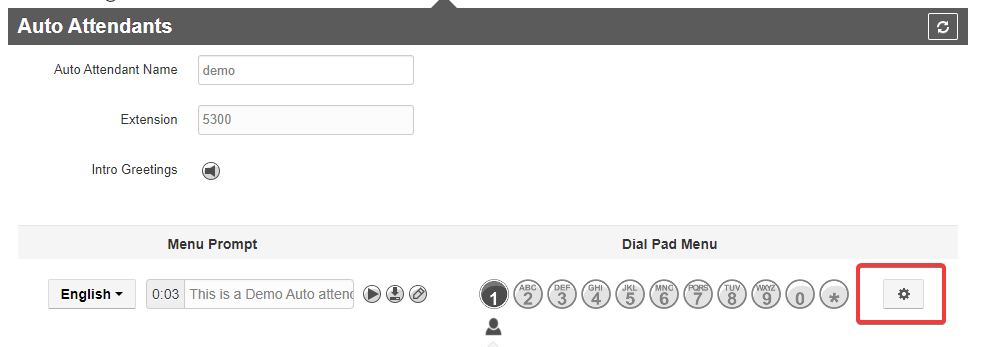
- Click on the settings icon highlighted below.
- Go to the speech keywords tab.
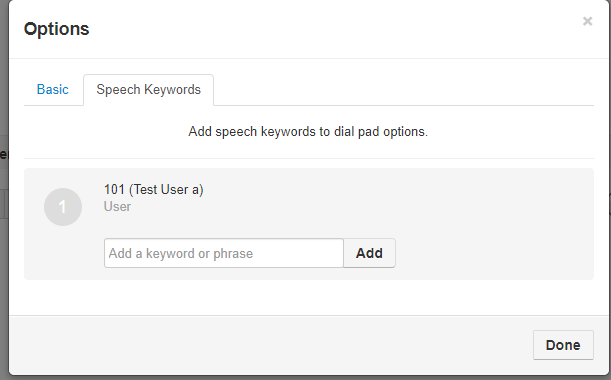
- Remove any keyword that:
- Appears in the greeting or menu audio recording
- Is too short or too common (single syllables, articles, prepositions)
- Duplicates a keyword used in another menu option
- Save each option after editing.
- Test the Auto Attendant with a live call before returning to production use.
Option B: Disable Speech Recognition Entirely
Use this approach when your Auto Attendant is designed for keypad input only, or when speech recognition is causing consistent problems across all options.
- Log in to the Hosted PBX Portal.
- Navigate to Auto Attendants and select the affected Auto Attendant.
- Remove or replace the option with the Speech Keywords
Option C: Rebuild Problem Keywords with Longer, Distinct Phrases
If you want to keep speech recognition active, replace short or ambiguous keywords with longer, more distinct phrases. For example:
| Avoid (too short or ambiguous) | Use instead (specific and distinct) |
|---|---|
sales |
talk to sales or sales team
|
yes |
yes please or confirm
|
one |
option one |
help |
I need help or technical support
|
Longer phrases reduce the chance of an accidental partial match against background audio or words inside the greeting.
After Making Changes: Testing Checklist
After adjusting or disabling speech keywords, verify the fix before considering the issue resolved:
- Call the Auto Attendant and stay silent. The "I don't understand" prompt should not fire before the timeout.
- Let the greeting and menu play through without interruption.
- Test each button press option to confirm routing still works correctly.
- If speech is still enabled, say each keyword clearly and confirm correct routing.
- Test from a mobile device and a desk phone if possible, as audio quality differs.
- Ask a colleague to test from outside the office to simulate a real caller environment.
When to Contact Support
If you have removed or disabled speech keywords and the "I don't understand" errors persist, the issue may be related to audio file encoding, greeting recording quality, or a platform-level configuration. Contact the support team if:
- The greeting audio cuts out even after all keywords are removed
- Callers are still being misrouted with no speech keyword configuration in place
- The speech recognition toggle is not visible in your Portal
- The problem only occurs on specific call types (mobile, toll-free, SIP trunk)